



About
Current version: 0.1.6
QuickGen is a Lumiverse extension for generating images and videos from saved ComfyUI workflows. Choose an ImgGen Main Preset, adjust the workflow settings, and preview the result or add it to a chat.
Permissions
3 permissions
Granted on install
Read, add, change and hide chat messages.
Needs an admin to approve
Generate images with your image connections.
Read, upload and delete your stored images and videos.
What it adds
2 additions
- 2
Drawer tab: QuickGen
Input bar action: QuickGen
Version and source
2 details · 1 link
Details
0.1.6
1.2.4
Links
Installation
Before installing, use a Lumiverse v1.2.4 or later build that includes QuickGen support. Configure your ComfyUI connection and save your workflows in ImgGen.
Copy the QuickGen folder to
<Lumiverse data directory>/extensions/quick_gen.In Lumiverse, open Extensions (Spindle) and select Import local extensions.
Enable QuickGen and grant the Image Generation and Images permissions. To add results to chat, also grant Chat Mutation.
To update QuickGen, replace the installed extension files with the latest version, then reload the extension and refresh Lumiverse. Preserve the extension's saved user data when updating.
Features
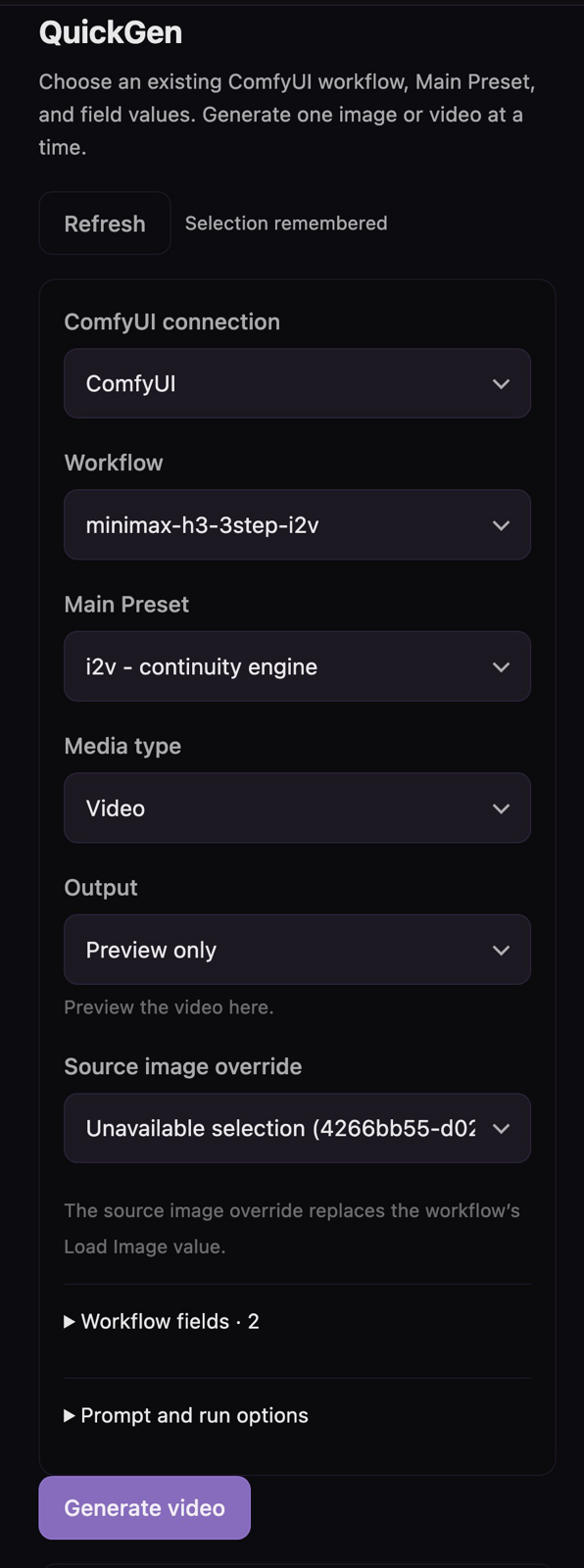
Image and video generation: Run one saved ComfyUI workflow at a time with your chosen Main Preset.
Workflow controls: Adjust field values and optionally override the prompt. QuickGen remembers your last selections.
Source images: Use a saved Lumiverse image or select Previous QuickGen image when the workflow supports an image source. To select an ImgGen result, click Refresh to update the image list.
Chat output: Preview a result, insert it as a new chat message, or attach it to the last message. Unposted image previews can also be added to chat afterward. For videos, select the chat output before generating.
Progress and cancellation: Follow generation progress, cancel an active run, and open completed images or videos.
Result status: See whether a result has been inserted or attached. Unavailable media displays an explanatory message. Prompt details are hidden during generation and when the corresponding result is unavailable.
Generate a result
Open a chat, then open QuickGen from the drawer or the input bar's Extras menu.
Select a connection, workflow, Main Preset, and media type.
Adjust the workflow fields and choose an Output option: Preview only, Insert into chat, or Attach to last message.
Select Generate image or Generate video.
Generation is available only while a chat is open. If no chat is active, the Generate button is disabled and Open a chat to generate. appears beside it.
Version history
0.1.6 — Disabled generation without an active chat and added an explanation that updates as chats open or close. Hid previous prompts during generation and prompts for unavailable results. Simplified the README.
0.1.5 — Replaced broken previews with messages for unavailable media. Limited posting actions to unposted image previews and replaced selected actions with posting and completion statuses.
0.1.4 — Added Preview only, Insert into chat, and Attach to last message output options for images and videos.
0.1.3 — Aligned source image and filename controls with the saved workflow settings.
0.1.2 — Removed duplicate workflow fields while preserving saved values and choices.
0.1.1 — Introduced a single workflow panel for generating one image or video at a time.